Turn on accommodation
Last updated 23 September 2026
You need the club administrator role for the club you're setting up, and you need to be on your club's own site rather than the national site.
Accommodation is off by default. Turning it on puts a Book Accommodation button on your club's home page; everything else is ready to go as soon as you add some accommodation.
Step 1 — Open Accommodation Settings
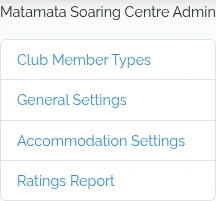
Sign in, click Admin, and choose Accommodation Settings from the menu under your club's name. The direct link is /admin/accommodation-settings.
Step 2 — Switch accommodation on
Tick Show the Book Accommodation button on the home screen. The switch saves as soon as you click it — there's no Save button for this one, and you'll see an "Accommodation enabled" message.

The switch only controls the button on the home page. The accommodation pages themselves stay reachable at /accommodation either way, so turn the switch on before you tell members about the feature.
Step 3 — Add a note to the confirmation email
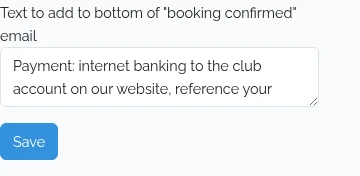
Whatever you type into Text to add to bottom of "booking confirmed" email is appended to every booking confirmation your club sends. It's the place for payment details, where to find the key, or who to call on arrival. You have 255 characters.
Click Save for this one.
Cancellation emails don't include the footer — they just tell the guest their booking is gone and to contact the club if that was unexpected.